

You just finished a photoshoot. You have three hundred images ready to upload to your portfolio site or send to a client. But before you hit that upload button, there is a problem you probably haven't thought about. Every single one of those photos carries a digital trail. It includes the exact GPS coordinates of where you took them, the model of your camera, and sometimes even the serial number of the device.
Sharing these files without cleaning them first is like mailing a postcard with your home address written on the back. For most people, this is an accidental leak of private data. For professionals, it can be a security risk or a breach of client confidentiality. The solution is batch EXIF removal. This process strips that hidden metadata from dozens or hundreds of images in one go, ensuring only the visual pixels reach the public eye.
Why You Need to Strip Metadata Before Sharing
When you take a photo with a smartphone or a DSLR, the device writes EXIF data (Exchangeable Image File Format) into the file header. This isn't just a timestamp. It often contains GPS coordinates, lens settings, ISO values, and software history.
Consider a real estate agent posting interior shots. If they don't clean the files, a determined viewer can pinpoint the exact location of the property, including the latitude and longitude down to a few meters. Or think about a journalist publishing a photo of a sensitive event. The metadata might reveal the phone model used by the source, potentially identifying them.
Beyond privacy, there are workflow reasons to remove this data. Metadata adds file size. While it's usually small, stripping it from thousands of images can save storage space. More importantly, some platforms compress or alter images unpredictably. By sanitizing the files yourself, you control what gets shared. You ensure that no embedded thumbnails or editing history (like Lightroom adjustments) leaks out.
The Best Tools for Batch Processing
You have several options for cleaning hundreds of photos. The right choice depends on your technical comfort level and how much you value privacy during the cleaning process itself. Here is a breakdown of the main approaches.
| Method | Best For | Privacy Level | Ease of Use |
|---|---|---|---|
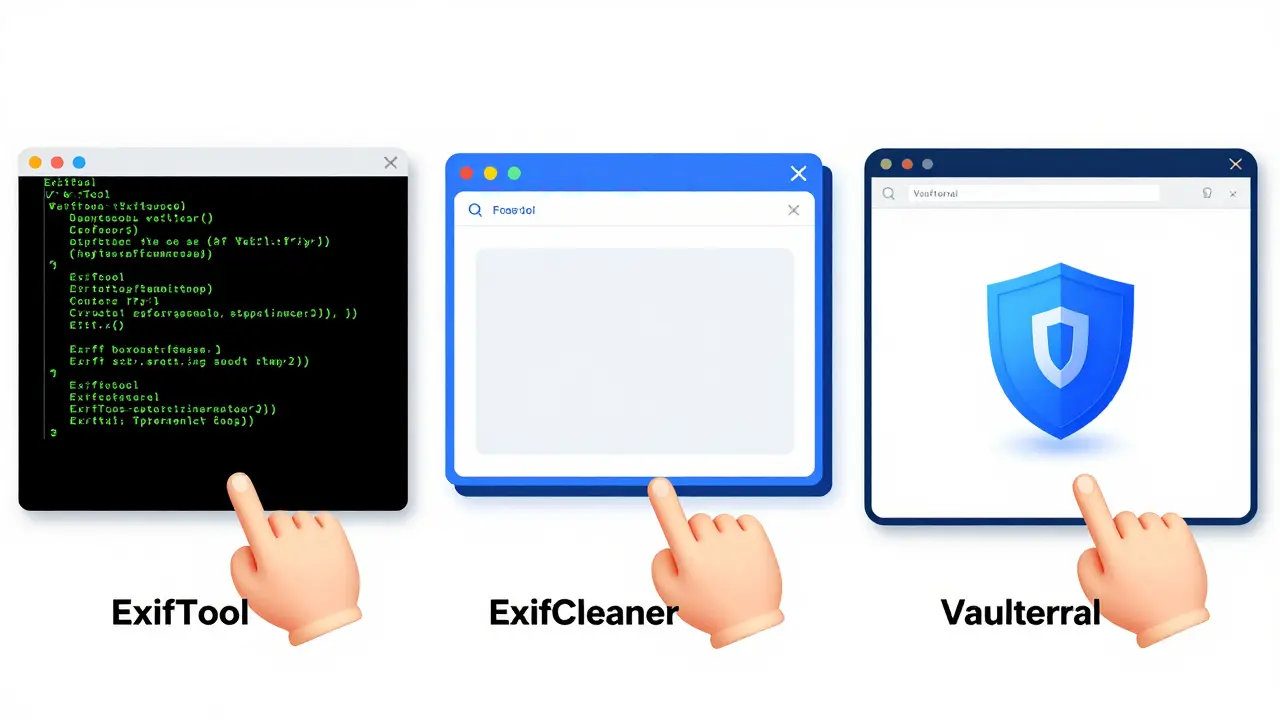
| ExifTool | Developers, large archives | High (Local) | Low (Command Line) |
| ExifCleaner | Windows/Mac users | High (Local) | Medium (Drag & Drop) |
| Vaulternal Metadata Remover | Quick browser-based cleaning | Very High (Client-side) | High (No Install) |
| Online Upload Services | Casual, non-sensitive photos | Low (Server-side) | High |
1. ExifTool: The Power User's Choice
If you are comfortable with the command line, ExifTool is the industry standard for metadata manipulation. It is free, open-source, and incredibly fast. It can handle almost any image format, including JPEG, PNG, TIFF, and RAW files.
To use it, you install it via Homebrew on macOS (`brew install exiftool`) or Chocolatey on Windows (`choco install exiftool`). Once installed, you navigate to your folder in the terminal. To strip all metadata from every JPG in a directory, you run a single command:
exiftool -all= *.jpg
This wipes everything. However, ExifTool creates backup files by default (named `file_original.jpg`). To avoid doubling your storage usage, add the `-overwrite_original` flag. Just remember: this action is irreversible. Always keep a copy of your raw files elsewhere.
2. Desktop Applications: ExifCleaner and EXIF Purge
If typing commands feels too technical, desktop apps offer a graphical interface. ExifCleaner is a portable tool for Windows, Mac, and Linux that processes files locally. You simply drag a folder containing hundreds of photos onto the window, and it strips the metadata instantly. Because it runs offline, your photos never leave your computer.
Similarly, EXIF Purge is a lightweight Windows utility designed for quick batch cleaning. These tools are great because they balance speed with ease of use. They don't require installation (in the case of portable versions) and handle large batches without choking.
3. Browser-Based Tools: The Modern Approach
Historically, online tools meant uploading your photos to a stranger's server. That is risky. If you upload a photo of your home interior to a random website, that server stores your data. You don't know who has access to it.
However, new technology has changed this. Tools built with WebAssembly allow processing to happen entirely within your browser. Vaulternal's Metadata Remover is a free browser-based tool that strips metadata locally using JavaScript and WebAssembly. When you use this image metadata stripper, your photos never leave your device. You can verify this by opening your browser's developer tools and watching the network tab-no uploads will occur.
This approach supports JPG, PNG, GIF, WebP, and TIFF files up to 50 MB each. It removes GPS coordinates, camera serial numbers, and editing history. Crucially, it re-saves the image without recompression, so the visual quality remains identical to the original. For a photographer who needs to clean a batch of deliverables quickly without installing software, this is often the fastest route.
Step-by-Step: Cleaning Your Batch
Regardless of the tool you choose, follow this workflow to ensure safety and completeness.
- Back up your originals. Never work directly on your only copy of the files. Create a duplicate folder named "Cleaned" or "Web Ready."
- Inspect a sample file. Before you batch process, check one photo. On Windows, right-click > Properties > Details. On Mac, open in Preview > Tools > Show Inspector. See what data is there. If you see GPS coordinates, you know you need to strip them.
- Select your method. For huge archives (10,000+ files), use ExifTool. For medium batches (100-500 files), use a desktop app like ExifCleaner or a local browser tool like Vaulternal's Metadata Remover.
- Process the batch. Run the tool. If using a browser tool, drag and drop the entire folder. Wait for the progress bar to finish.
- Verify the result. Check one of the cleaned files again. The metadata fields should be empty or missing. The image should look exactly the same.
Pitfalls to Avoid
One common mistake is assuming that renaming the file or converting it to a different format automatically removes metadata. It doesn't. Converting a JPG to PNG often copies the EXIF data over unless you specifically tell the conversion tool to strip it.
Another pitfall is relying on social media platforms to clean your photos for you. While Instagram and Facebook do strip some metadata, they don't always catch everything. They might leave behind XMP tags or IPTC copyright information. Don't rely on third-party algorithms to protect your privacy. Do it yourself before you upload.
Also, be careful with "free" online converters that require uploads. Many of these services scan your images for content moderation or ad targeting. Using a client-side tool ensures that zero-knowledge privacy-you are the only one who sees the image.

What Gets Removed?
When you perform a full batch clean, here is what typically disappears:
- GPS Coordinates: Latitude, longitude, and altitude.
- Device Info: Camera make, model, and serial number.
- Timestamps: Date and time of capture.
- Software History: Which apps edited the photo (e.g., Photoshop, Lightroom).
- Embedded Thumbnails: Small preview images stored inside the file.
- IPTC and XMP Tags: Copyright info, author names, and keywords.
Some data, like color profiles (ICC profiles), might remain if the tool is set to preserve image rendering accuracy. This is usually fine, as color profiles don't reveal personal identity. But if you want absolute anonymity, look for a "strip all" option that includes ICC profiles.
Conclusion
Cleaning hundreds of photos doesn't have to be a tedious, one-by-one task. With the right tools, you can sanitize an entire archive in minutes. Whether you use the robust power of ExifTool, the convenience of ExifCleaner, or the privacy-focused design of Vaulternal's Metadata Remover, the goal is the same: share your images, not your data. Take five minutes to scrub your metadata before you publish. Your future self-and your clients-will thank you.
Does removing EXIF data reduce image quality?
No. EXIF data is hidden metadata, not part of the visual pixel data. Removing it does not change the resolution, color, or sharpness of the image. Some tools re-save the file, which can introduce minor compression artifacts, but modern tools like Vaulternal's Metadata Remover strip metadata without recompressing the image, keeping pixels identical.
Can I recover removed EXIF data?
Generally, no. Once metadata is stripped and the file is overwritten, the data is gone forever. This is why it is critical to keep a backup of your original files before running any batch removal tool. Always work on copies.
Is it safe to use online EXIF removers?
It depends on the tool. Traditional online removers upload your photos to their servers, which poses a privacy risk. Safer options are client-side tools that process images locally in your browser using WebAssembly. In these cases, the file never leaves your device, making them as safe as desktop applications.
Do social media platforms remove metadata automatically?
Most major platforms like Instagram, Facebook, and Twitter strip basic EXIF data like GPS coordinates when you upload. However, they may not remove all metadata, such as IPTC copyright tags or specific camera serial numbers. Relying on them is risky; it is better to clean files before uploading.
Which formats support EXIF data?
JPEG is the most common format for storing EXIF data. PNG, TIFF, and WebP also support metadata, though they store it in different structures (like chunks or IFDs). GIFs have limited metadata support. RAW files from cameras contain extensive metadata. A good batch tool should handle JPG, PNG, TIFF, and WebP.